Understanding the Firewall Behavior in GlassWire

Hi everyone,

First, I want to sincerely thank you all for sharing your feedback and concerns about the GlassWire firewall behavior. I’ve been reading through your posts and completely understand that some recent changes have caused confusion and frustration.

I want to take the time to explain exactly how the Ask to Connect mode behaves, since it can seem unintuitive at first. My goal here is to help clarify what’s happening and to let you know that I’m working closely with our development team to make the experience clearer and more intuitive.

Your feedback is incredibly valuable to us, and we’re listening closely.


:magnifying_glass_tilted_left: How Ask to Connect Mode Works

GlassWire’s Ask to Connect mode is designed to give you complete visibility and control over which applications can access the network. Here’s exactly how it works:

1. Apps Are Blocked by Default

When you enable Ask to Connect mode, all apps are blocked by default until they first attempt to access the network.
When an app tries to connect for the first time, GlassWire will prompt you to allow or block that specific app.

2. You’re Only Asked Once (Unless You Delete It)

After you choose Allow or Block, the app appears in your firewall list with that setting applied.
You won’t be prompted again for that app unless you delete it from the list.
If deleted, GlassWire will prompt you again the next time that app has network activity.

:light_bulb: Tip: Simply launching an app doesn’t trigger a prompt, only network activity does.

3. Switching from Click to Block Mode

If you were previously using Click to Block mode and switch to Ask to Connect, here’s what happens:

  • Any app already detected by GlassWire in Click to Block mode will still appear in your firewall list.

  • The existing rules (allow/block) for those apps will remain active.

  • If you delete one of these entries, you’ll be prompted again the next time GlassWire detects new network activity for that app.

In Click to Block mode, by default:

  • Incoming connections are blocked.

  • Outgoing connections are allowed.

  • Certain system apps are not blocked at all (for either incoming or outgoing connections) to ensure essential Windows services and system processes continue to function properly.

4. Why You Might See More Apps Listed Now

In the past, GlassWire only displayed apps that had already generated network activity.
Now, the app list may also include:

  • Installed apps that haven’t yet made any network requests,

  • System apps (active or inactive),

  • Uninstalled apps that still have saved firewall rules.

Since Ask to Connect mode blocks all apps by default, apps with no network activity yet will appear as “Blocked”, even though they haven’t actually attempted to connect.
When those apps do make their first network request, you’ll still be prompted to allow or block them, just like any other app.

This is expected behavior under the current design and ensures that no app connects without your explicit approval.

5. What You’ll See in the Apps List

Your app list may include:

  • Installed apps with network activity

  • Installed apps with no network activity yet

  • System apps (with or without network activity)

  • Uninstalled apps (that retain their previous firewall rules)

If you reinstall an app that was previously uninstalled, GlassWire will automatically reapply its saved firewall rule, which you can manually change at any time.


:speech_balloon: We’re Listening and Improving

We understand that the way the firewall currently presents information can be confusing, especially when apps appear blocked before they’ve ever connected. While the behavior described above is by design, we’re actively reviewing your feedback to make the firewall feature clearer and more intuitive moving forward.

I’m working directly with our development team on improvements, and your input helps us prioritize what matters most to you.


:megaphone: We’d Love Your Feedback

If you’re seeing any behavior that doesn’t match what’s described here, or have suggestions to improve the experience, please share your feedback.

Our team will review any inconsistencies and investigate them right away.
We genuinely appreciate your patience, insights, and continued support as we refine the firewall experience.

Thank you again for taking the time to share your thoughts and help make GlassWire better for everyone.

- The GlassWire Team
3 Likes

Thanks for the long-overdue post explaining how things work in “Ask to connect”. However, I do have a few comments:

I see quite frequently programs like Microsoft Quick Assist fail due to “Microsoft Edge Webview2” being blocked. IF I ever see a GlassWire prompt asking me if I want it to be allowed, I FOR SURE allow it - I know just how disruptive it is to have this blocked. Microsoft Quick Assist - when it fails - will never tell you that it is failing because Microsoft Edge Webview2 can’t access the Internet. I am 100% sure there are times when I do not get a GlassWire prompt asking me if I want to allow Microsoft Edge Webview2. When I use Quick Assist and it fails, I now know to just go to GlassWire Protect and unblock the inevitably blocked Microsoft Edge Webview2 and restart Quick Assist,

Likewise, when I discover that Google Drive is not syncing, I go to GlassWire Protect and unblock it. This is a more insidious problem because I am much less likely to realize that Google Drive is just silently failing to sync. I swear at GlassWire when I go to another computer, expecting my Google Drive files to have been synced from changes I made recently on my main computer only to find the files never got synced from my main computer to Google’s cloud. I swear very loudly when I am not near to my main computer and can’t fix the problem by unblocking Google Drive there. Such as when I am giving a presentation Protecting your PC to a group of people at a branch of the Ottawa Public Library (which I have given over 100 times), in which—ironically—I mention how people can use GlassWire as one of the layers to protect themselves.

An issue I see with the current behaviour is (as explained by you) is that there is no way I can tell from looking at the list of blocked apps in GlassWire Protect - which of them are blocked by default and will (I can only hope) pop up and ask me if I want to allow them when they first access the netwoark and which of them are blocked because I got a popup and told GlassWire I didn’t want the program to access the network.

I would much prefer if programs didn’t show up on the list until I explicitly allow them or deny them. Any program not on the list should not appear on the list until they try to access the network! I really don’t care if program XYZ doesn’t show up IF it hasn’t tried to access the network. And when it does try to access the network, it should show up as “Allowed” if I answered the GlassWire popu to say I wanted it allowed. It should show up as “Blocked” If I answered the GlassWire prompt saying I wanted it blocked. If I don’t answer the prompt, it should be blocked but not show up on the list. The next time it tries to access the network, I should get the GlassWire prompt.

I think the only mode that makes sense for GlassWire - from a true protection point-of-view - is “Ask to connect”. I am not interested in any other mode as that is the only mode that will truly protect me should I get a rogue program on my computer.

I have been living with this craziness in 880, but it really is driving me nuts. I am seriously close to going back to an earlier version and sticking with that until it GlassWire no longer works. At which point, I will just uninstall GlassWire and be done with it.

2 Likes

I really appreciate you taking the time to write such a detailed response. I completely understand how frustrating this behavior must feel, especially when it interferes with apps you rely on every day.

From what you’ve shared, it sounds like the main pain points are:

  1. Some apps sometimes show up as blocked again, even after you’ve explicitly unblocked them, such as Microsoft Edge WebView2 and Google Drive. (Could you please confirm whether you are seeing incoming or outgoing connections as blocked? I’m assuming the concern here is outgoing connections.)

  2. It’s not clear from the firewall list which apps are blocked by default versus those you’ve explicitly chosen to block.

  3. You’d prefer that the list only display apps you’ve directly interacted with (allowed or blocked yourself).

These points highlight some of the usability gaps I’m already reviewing with our development team, especially around clarifying what’s shown in the list, how default firewall rules behave, and ensuring that apps you’ve explicitly allowed remain allowed.

I’ll be sharing your feedback and examples directly with the team and asking them to investigate the behavior you described in point #1. I’ll keep you updated if we need any additional details from you.

Thank you again for taking the time to write this out so clearly. If you notice any consistent patterns, for instance, specific triggers that cause those apps to revert to “blocked”, please let me know. That kind of detail is incredibly helpful for our investigation.

I’ll keep you posted as we make progress. Thanks again for your patience and for helping us make GlassWire better.

Hmmm…

Your first bullet point “Some apps sometimes show up as blocked again, even after you’ve explicitly unblocked them, such as Microsoft Edge WebView2 and Google Drive.” -

I always assumed it was new versions of Microsoft Edge Webview2 and Google Drive that were causing a new blocking or pop-up. But I can’t recall ever tracking the actual version numbers. I will start doing so - at least for these two programs. I suppose it is possible that it is the same version that is causing the pop-up even though I explicitly allowed it.

I am pretty sure the automatic blocking is in both directions. However, I can swear this is always true. I really don’t care if programs are blocked for inbound. Any such connections are blocked at my router anyhow. As well, the Windows Firewall blocks inbound by default. But I will watch for this in the future. I can understand that GlassWire control over inbound connections may be easier than playing around with settings directly on Windows Firewall for programs they want to allow (for inbound). But I imagine this is a real edge case.

New version blocking is a big issue for me - If I explicitly state something should be allowed, an update to that program should be allowed. I have absolutely no chance of assessing if a new version of Google Drive is somehow malicious! If I allowed Google Drive once, if I get a pop-up about a new version, I am going to allow it 100% of the time! Because of that, I wonder why updates are not treated the same as the version I explicitly allowed. If nothing else, making this a configurable option would be a good thing.

As well, these are all digitally-signed programs. As has been suggested many times over the years, a configurable item allowing the user to blanket allow any programs digitally signed with a specific certificate would help A LOT. What would be really nice would be - in the pop-up asking if the user wants to allow or deny a connection, you could include “This program is digitally-signed by Google LLC. Click here to verify the certificate (which would bring up datails about the certificate), click here to allow all programs signed with this certificate”. Another nice thing would be if GlassWire automatically verified certificates (to prevent a possibility of someone managing to get a signing certicate for something like “Gooogle LLC”. Surely GlassWire can verify certificates and then assure users that the certificate is indeed from Google LLC and not an attacker.

Your points 2 and 3 - yes. But 2 has a nuance. In your explanation about default blocking everything - that is totally useless if anything on the blocking list is going to cause a popup the first time it tries to access the network. In fact I already know that everything is going to be blocked unless/until I get a pop-up saying it is trying to access the network and do I want to allow it. That is what GlassWire has always done when in “ask to connect” mode. Why clutter up the list with a huge list of programs that absolutely don’t matter.

Let me know if there is any additional info I can provide. I will keep running 880 for now.

Yes please make it optical very clear which is a block GW did and which is my own. Maybe give every GW block a little gw icon (or whatever icon that makes it easy to see).
Since GW for me still sometimes silently blocks stuff without any popup while I load into windows I need a way to quickly see what I blocked and what GW did on it’s own.

1 Like

Thanks for the additional detail. Please keep me updated on your findings as to whether it seems that apps such as Microsoft Edge Webview2 and Google Drive are being blocked due to new versioning. I received further clarification from our development team around the expected behavior:

In ‘Ask to Connect’ mode, if an existing application is updated to a new version, GlassWire will treat it as a new app. It will be blocked by default, and the user will see an Allow/Block dialog. However, there is a case where the Allow/Block dialog will not appear: if the application is launched while GlassWire is not running (e.g. due to a restart or update), the app will be blocked silently without prompting the user. If the application—previously blocked without prompting the user—is launched again while GlassWire is running, the Allow/Block dialog will appear as expected.

So according to this, even new versions shouldn’t be auto-blocked for outgoing connections unless the pop-up never appeared due to GlassWire not running at the time, but even then, you should receive a pop-up to Allow/Block the app next time the app is launched while GlassWire is running.

Regarding the issue around new versions of an app not retaining the same firewall rule as previous versions, the development team is currently looking into potential fixes for this. I’ve shared your suggestions with them as well. I can’t commit to when this will be fixed just yet, but I did want to share that they are looking into it.

I’m also in discussions with them to understand if it’s possible to revert to not showing applications with no network activity in the list (unless it is an app that you explicitly set a rule for and becomes inactive later on), as this seems to be causing a lot of confusion. Once I have more info on the path forward, I will provide an update.

Thank you for your feedback. This is one of the topics I’m discussing with the development team. There are a number of ways we can make this more clear, and we’re exploring different solutions. Our goal is to simplify the experience and make it easy to understand what rules are applied to your apps and why.

Regarding your comment “Since GW for me still sometimes silently blocks stuff without any popup while I load into windows I need a way to quickly see what I blocked and what GW did on it’s own.” – Can you provide more detail?

Can you confirm whether it is blocking both incoming and outgoing connections for these apps?

Did you ever set a firewall rule (Allow/Block) for these apps through a pop-up or manually from the list?

Are they possible new versions of apps?

Do you ever receive a pop-up later for these apps next time they are relaunched or connect to your network?

Thanks for your patience and for sharing your experience.

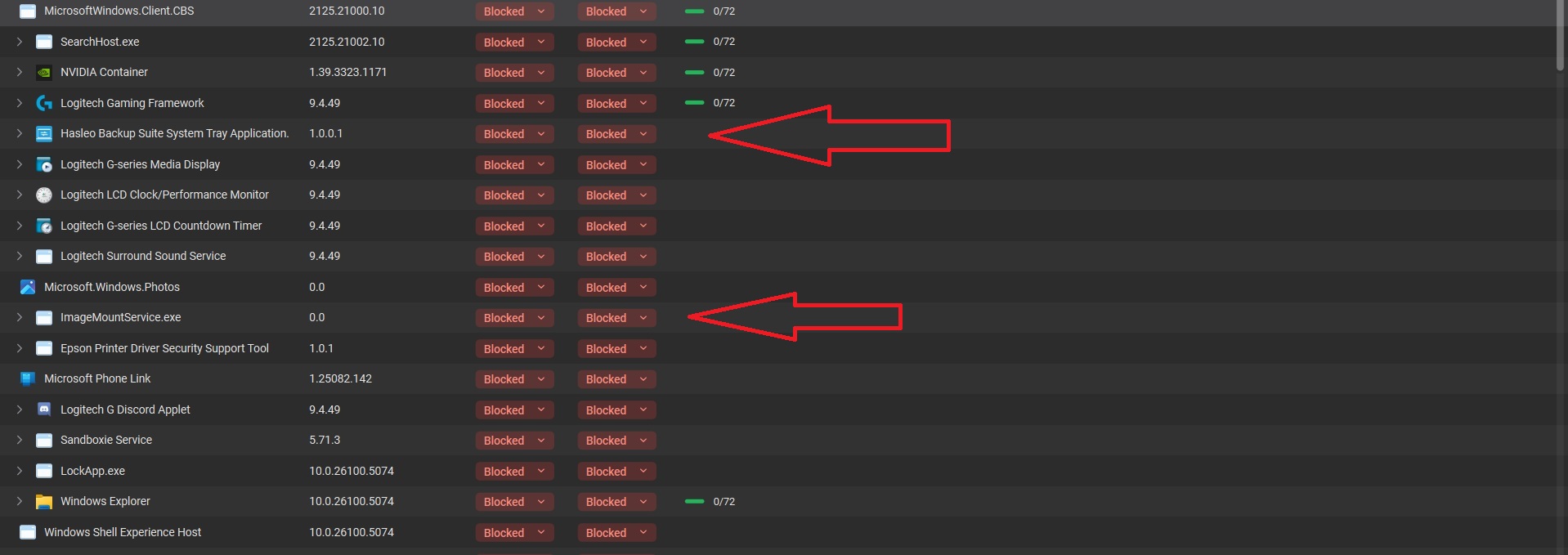
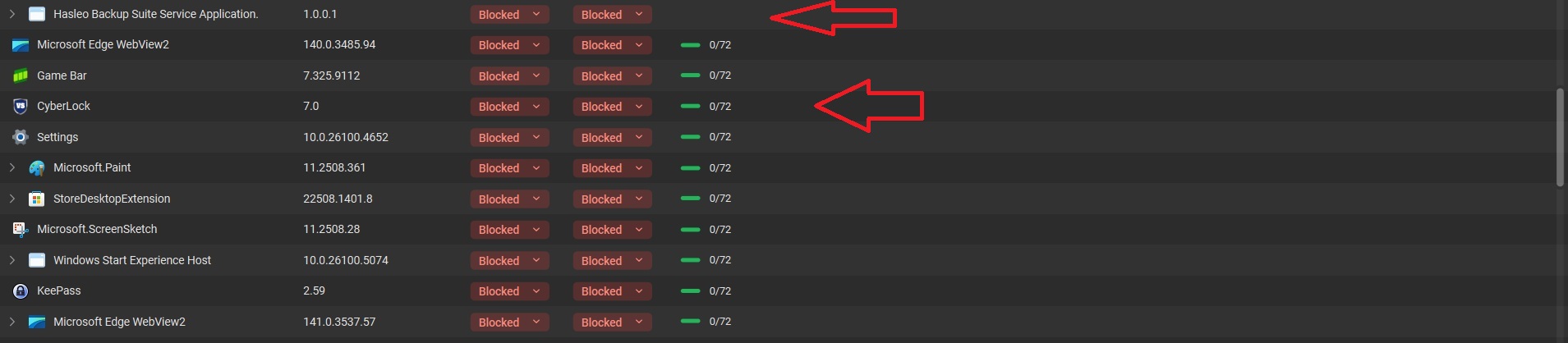
@Huda_GlassWire As an example I will take Cyblerlock and Hasleo Backup see screenshot

Can you confirm whether it is blocking both incoming and outgoing connections for these apps? It was an in and outgoing block

Did you ever set a firewall rule (Allow/Block) for these apps through a pop-up or manually from the list? Can’t say for sure for Cyberlock there is a 50/50 Chance that GW blocked it within a reboot and I had to manually allow it. Hasleo should have been a pop-up but I’m not 100% sure since the apps were installed for some time.

Are they possible new versions of apps? No the apps were already installed I just updated GW

Do you ever receive a pop-up later for these apps next time they are relaunched or connect to your network? No clue sorry. When I saw it as blocked in the list I instantly allowed it.

Thanks for sharing those details. I will share this with our development team. Please keep me posted with details if you see this behavior again.

Thanks for the extensive explanation

Long time user here :slight_smile: last week I installed windows 11 for the first time, clean install
Glasswire was the very first app I installed after the drivers
After installing GlassWire, first time you launch the app, the firewall is off: I turned it on and activated Click to Block

I then installed many different apps, many reboots, and each app was being automagically blocked without any GlassWire request for connection on the bottom right of my screen: the request window was not just popping up for any of them, and the app list inside GlassWire was being populated by red “Block” for both in/out connections

the only way to re-establish the standard behavior was uninstalling the last version of GlassWire, clean-install the old version (windows firewall-rules reset), work on the old app for like 5 minutes, then let it upgrade to the last version, sort of inheriting some firewall rules from the old one

now everything works as expected, and I much like the new version :+1:

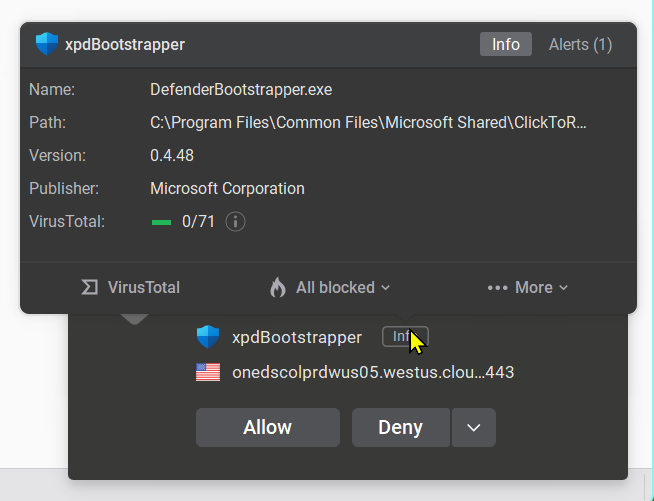
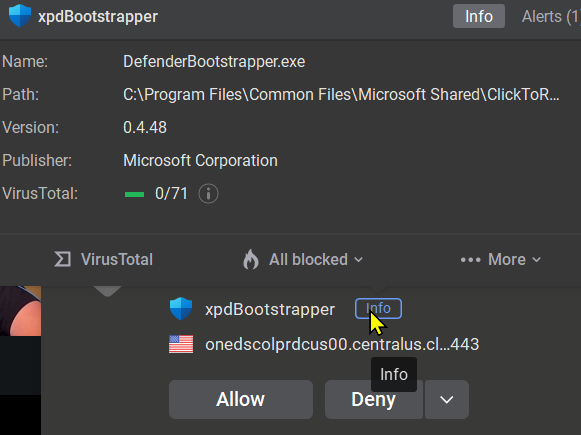
Here is an example.

On the 23rd, I got the following

As you can see the version number is 0.4.48. I clicked on the “Allow” button.

Today, I got the following

As you can see the version of the file is still 0.4.48. I have again Allowed it.

Chris

Thanks for taking the time to share your experience and feedback! You mentioned that you turned the firewall on and activated Click to Block mode, and after that apps were blocked without any pop-up. Did you mean Ask to Connect mode by any chance? That is the only firewall mode that will ask you if you want to Allow/Block connections for an app. Also, were you seeing apps blocked for both incoming and outgoing connections?

Thanks for sharing this. So it looks like apps are getting blocked after you already allowed them, and it is prompting you again even though it should not? This is definitely weird behavior. I’ll share these details with the team.

You are correct, my mistake :+1:

as soon as I turned the firewall ON it was by default set as “Click to Block”, and I manually switched it into “Ask to Connect”, which is by far the method I prefer to manually handle connections

the thing of not being able to select the firewall mode before activating the firewall, that thing I didn’t like… I would have prefered being able to select the firewall mode even before turning it on, in such a way to start the way I want, but I sort of remember the firewall mode is greyed-out if firewall is OFF: I think being able to select firewall mode even if firewall is turned OFF would be a relevant improvement

1. Apps Are Blocked by Default

When you enable Ask to Connect mode, all apps are blocked by default until they first attempt to access the network.
When an app tries to connect for the first time, GlassWire will prompt you to allow or block that specific app.

I have been using Glasswire for many years and always, always in “Ask to Connect” mode. I would get the dialog pretty regularly as things updated themselves or I installed something new. Since upgrading to the latest version, I am no longer receiving the prompt to allow or block. Instead, everything is just blocked (both In Connections and Out Connections). It is extremely tedious to unblock things manually (3 clicks).

Previously I would see this behavior only once in a while. I assumed it was due to automatic installation of new app versions during a restart. I don’t know. I do appreciate programs being automatically blocked from connect when Glasswire is unavailable to present the Allow/Deny dialog. This is fine.

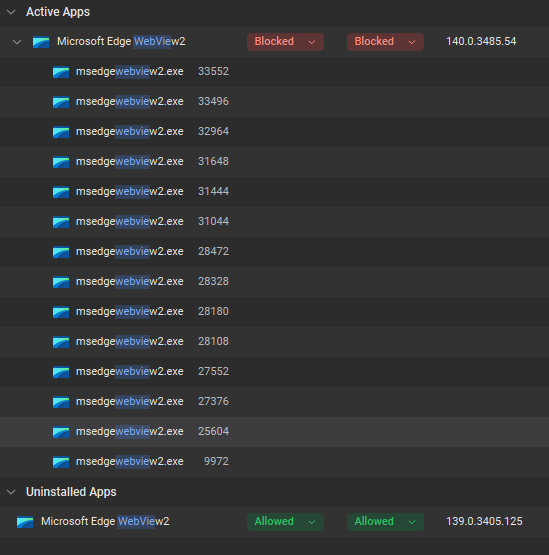
The problem is WebView2 is updated and launched during the early boot process and so the GlassWire pop-up never appears. The same thing happens for any apps which schedule update checks on startup. You can see in the screenshot (shared previously) that multiple instances of WebView2 have been launched by different parent processes. All are blocked silently for both in and out. Additionally, the version change is not logged or alerted by GlassWire monitoring. Which is in itself a security concern.

The solution requires a smarter approach to handling version upgrades. But this has been discussed many times, in many threads, for many, many years…

I can’t tell from your screenshots, but I strongly suspect the path to the file was different on the second launch. ClickToRun stuff often uses dynamic/temporary folders which GlassWire cannot handle because it relies on absolute paths. This is related to the longstanding limitation mentioned above.

Ironic that this “weird behaviour” could not be explained in this ‘Understanding the Firewall Behavior’ thread.

Whilst this would offer a simple user interface, it would be too broad to allow all apps from the same vendor. Imagine allowing all apps signed by Microsoft! This needs to be combined with either a match on the application name or path, with wildcards to handle variances.

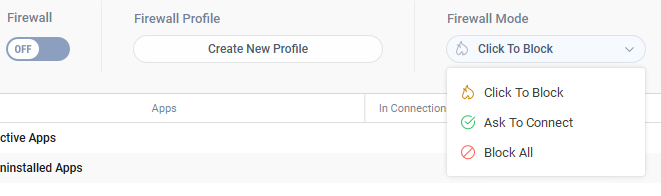
Thanks for clarifying. You should actually be able to select the firewall mode before you turn firewall on. It does look disabled, but you can actually select the mode from the dropdown first, then use the toggle to turn the firewall feature on, which will enable it in the mode you selected.

Could it be possible that the apps that you see as Blocked and are not getting prompted for are apps that have no network activity? Previously, apps that never connected to the network did not appear in the firewall list and did not prompt you to Allow/Block. Now, apps that have no network activity are detected and appear in the firewall list with the default setting of blocking incoming connections. Outgoing connections should be allowed unless you previously blocked them for that app.

Also, regarding blocking of incoming connections - in previous versions, incoming connections were also blocked by default, we just didn’t show it explicitly in the list as we do now, because we did not have bidirectional firewall control (where you can set different rules for incoming/outgoing). That’s why it shows that they are blocked now. Not new behavior, just a new way of showing it in the list.