I just installed the latest version yesterday (v3.7.880). I am using “Ask to connect”
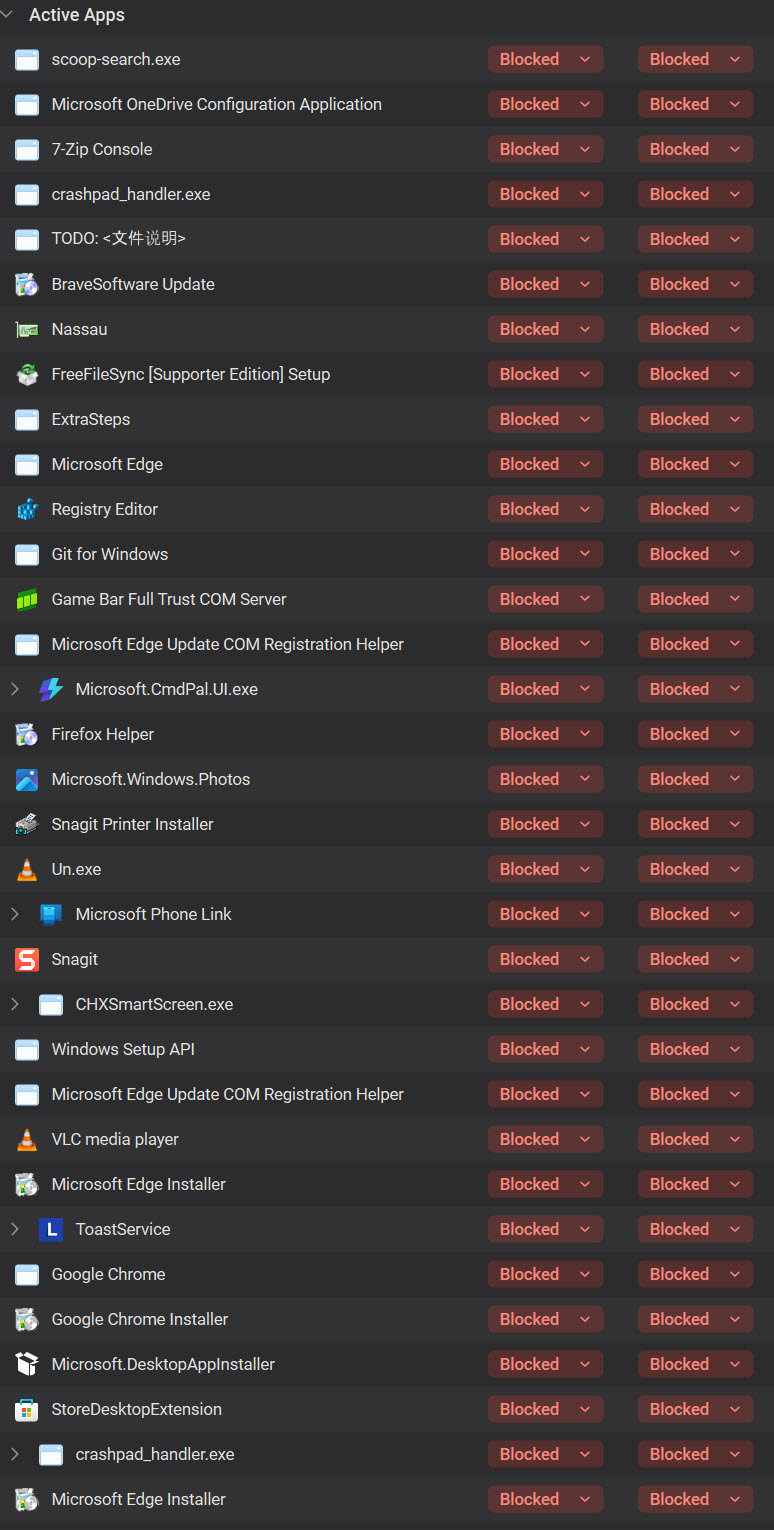
After finishing the installation, I have MANY entries in GlassWire Protect that are blocked when I didn’t block them. Many are showing “Blocked” for both “In Connections” and “Out Connections”. A smaller number are blocked only for “In Connections”. I did not block ANY of these. A screenshot of a few of them. I did not block any of these.
I tried unblocking them, and immediately a bunch were coming back as blocked. I tried uninstalling and reinstalling and checking the box to do a clean install.
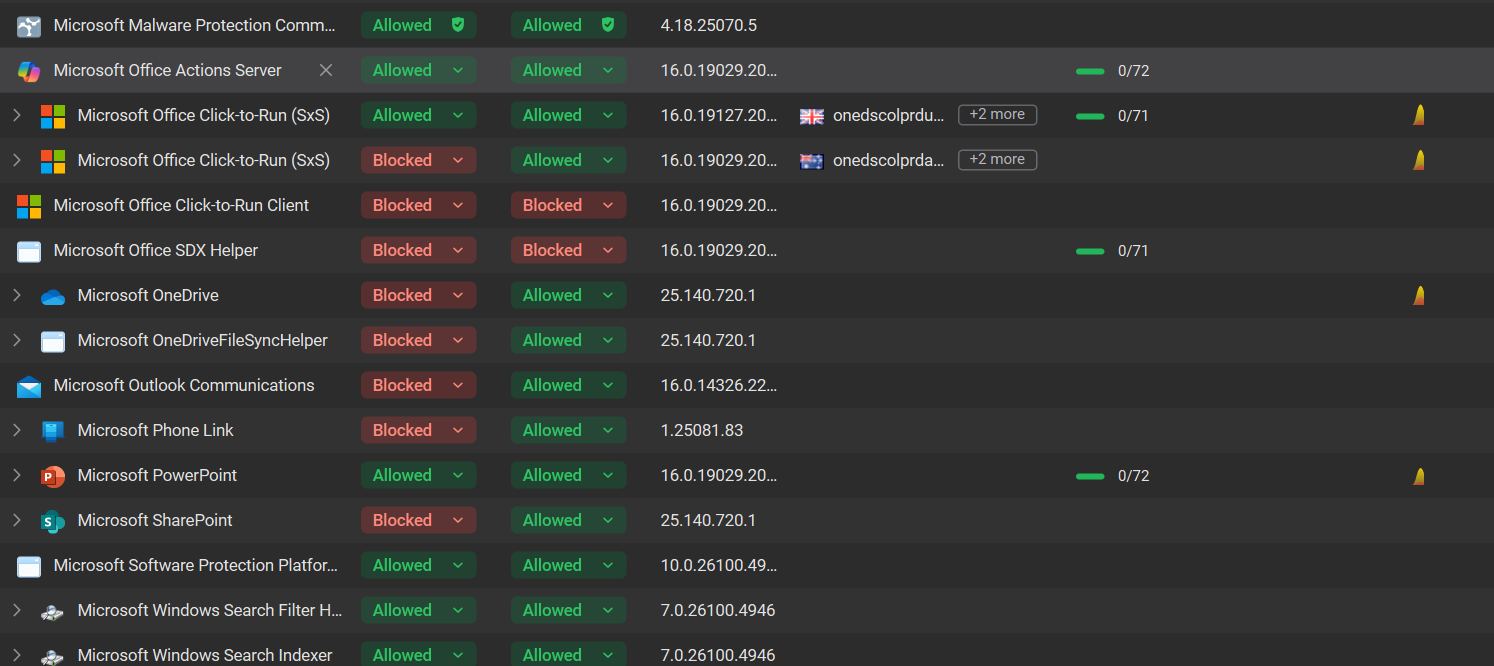
Some of these are going to be important processes that I may never notice are now being blocked, such as “Microsoft Office Click-to-run Client”.
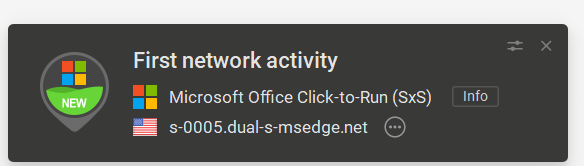
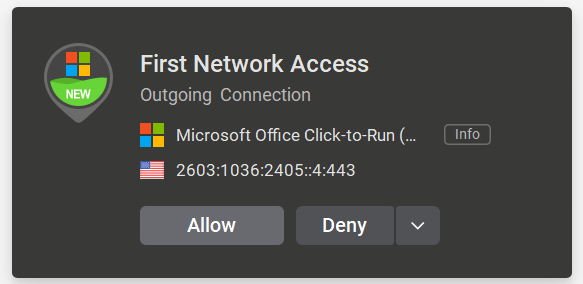
I then tried updating Microsoft PowerPoint from File > Account > Update Options > Update now. Strangely, it seems to be working. And I got normal pop-ups from Glasswire asking if I wanted the connection to happen.
The update to Microsoft 365 completed without errors.
So far, it FEELS like none of my programs that I don’t want blocked are being blocked.
I don’t know if GlassWire is now automatically blocking processes that shouldn’t be accessing the network or something.
But, even if that’s the case, I have a problem with it. I want the list of apps to show as blocked, only those I explicitly blocked - which is a really short list. I want to easily see if I accidentally blocked something when I am having problems. An example would be if Microsoft Quick Assist is not working. I have - on occasion - accidentally blocked it, and it was really easy to find because I block so few programs. Now I have this big list to scroll through and try to find - is it “Quick Assist”, “Microsoft Quick Assist”, or is it because “Microsoft Edge WebView2” (which I discovered years ago that Quick Assist requires) was accidentally blocked?
Thanks for the confirmation. It is all very confusing and cluttered now!
I would revert to an earlier version, but from the change log page GlassWire Software Version Changes List it appears I would have to go all the way back to 3.3.664 (Feb 5, 2024) as more recent versions don’t have download links. Do you know where I can get 3.5.821 (or more recent)?
Thanks much! From now on, I will make a point of always keeping older installation files for GlassWire. This is NOT the first time I wanted to revert to an older version.
For now, I will keep running 3.7.880 - in case anyone from GlassWire cares and wants me to detail more of my findings. But it won’t be long before I revert to an older version. 3.7.880 is just too ugly!
I just had another example of a process (FreeFileSync) being added automatically as blocked (I had allowed it previously in the last version of GlassWire.)
When I ran FreeFileSync, I got a message saying it couldn’t access a remote file share (due to the blocking by GlassWire) and I got a pop-up from GlassWire that allowed me to unblock it.
I am really concerned about background processes I may have running that may now be blocked totally silently without any indication from the process that it is failing - the process may just assume the network is unavailable!
Thanks again for the download link for older versions.
I guess this is the new feature: “Added support for monitoring running applications with no network activity in the GlassWire Protect section”.
It is baffling why you would want to monitor apps which do not use the network in a network monitoring app. I shan’t be installing this version.
The silent blocking of components like WebView2 is a longstanding problem which has been happening for 7 or 8 years! It stems from the fact that when some apps update they install into a new folder.
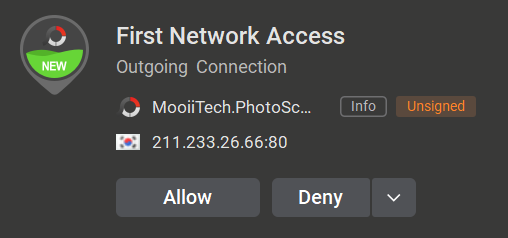
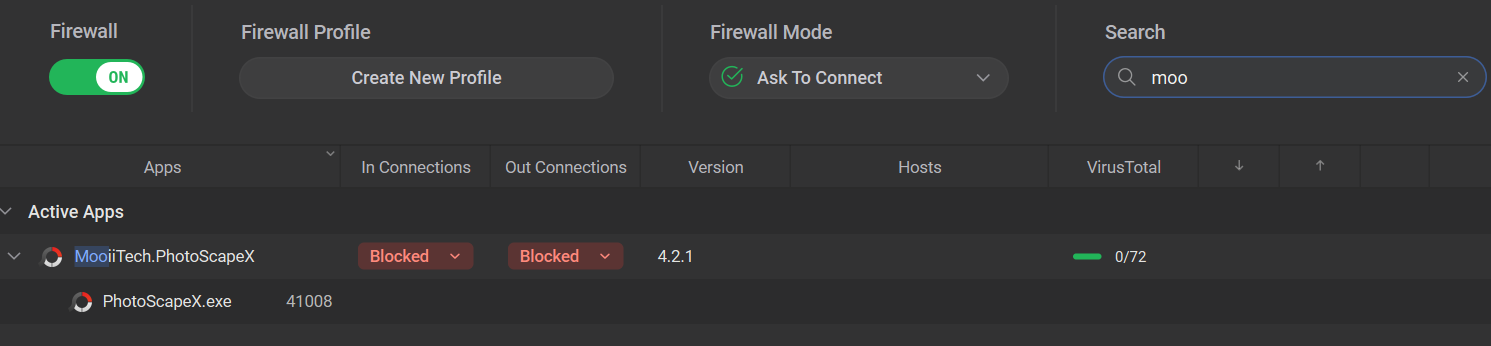
Before answering the prompt, I brought up GlassWire and searched on the program in question. It was showing as “Blocked” for both inbound and outbound.
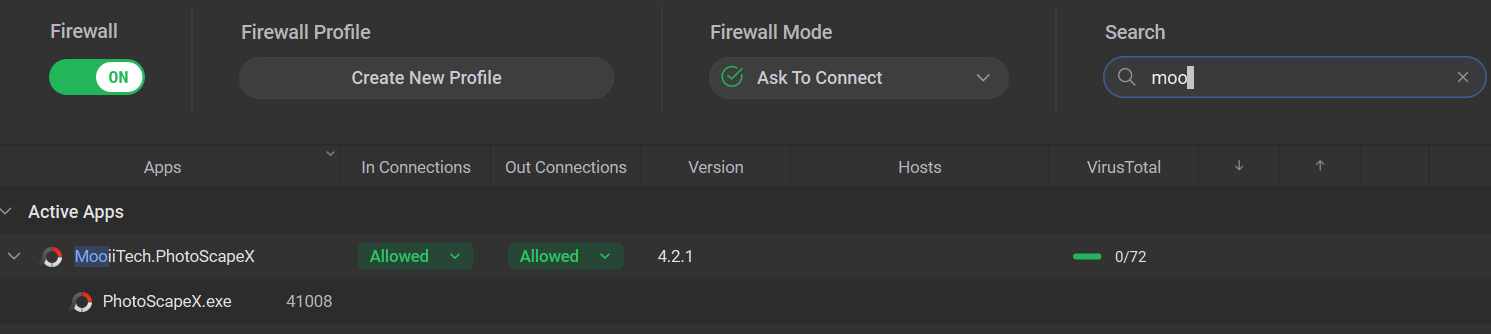
So that sort of makes sense: If I look at the list of apps in GlassWire, only those that show as “Allowed” will in fact allow traffic to flow. Those that show “Blocked” will not allow traffic until/unless I allow it through the pop-up (I am in “Ask to connect” mode).
However: Looking at the “GlassWire Protect” tab, I see lots of things blocked and allowed that I did not explicitly block or allow! I have no way of know if a blocked app will silently block things at some point or pop-up and ask me for permission at some point. If I explicity block an app, I don’t want GlassWire asking me again if/when the app tries to access the network - I already said to block it. But if I didn’t explicitly say to block it, I do want GlassWire to ask me if/when the app tries to access the network.
I get the feeling this change in behavior with GlassWire 3.7.880 has promise. But I am uncertain as to exactly what is happening.
Uncertainty is frustrating.
If anyone else has ideas that can clarify my (quite likely) muddled thinking on this, please say so!
I wholeheartedly agree with the problem with WebView2. I can’t tell you the number of times I had some program fail, verify they are not being blocked by GlassWire, and look for other causes of the failure only to eventually discover that the program was dependent on WebView2 and it turned out it was blocked because it seems to get updated on a weekly schedule or something.
Microsoft Quick Assist has been one of those programs dependent on WebView2.
There should be an option in GlassWire where - if a file is signed with a certain certificate or publisher (msedgewebview2.exe is signed by Microsoft) that file is automatically allowed unless explicitly blocked by me. That last bit is important. I do want to block Microsoft’s photos app, but I never want WebView2 blocked - as long as it has been signed by Microsoft.
Microsoft Teams is another app which relies on WebView2, this updates early in the boot process, before the GlassWire service has started. The fact that GlassWire then silently blocks the app is frankly a bug, one that I have been banging on about for years. Promises have been made, but instead we get other unrequested features, like this this bizarre new behaviour of monitoring non-networking apps.
All we need is a rule which uses wildcards and (for extra security) checks the digital signature.
The combination of a path match and a certificate should be enough to correctly identify the app. This is the sort of basic include/exclude rule that most security products have.
Same here. I’m working with Python virtual environments and since v3.7.880 all exe-files in newly created or updated environments are silently blocked and have to be unblocked manually. Quite annoying.
Same issue here. It has even silently blocked softwares own update utilities and part of the Antivirus Software that I use. I now am regularly checking it to undo what it is blocking.
Any chance the devs can explain with which logic stuff gets blocked and allowed randomly?
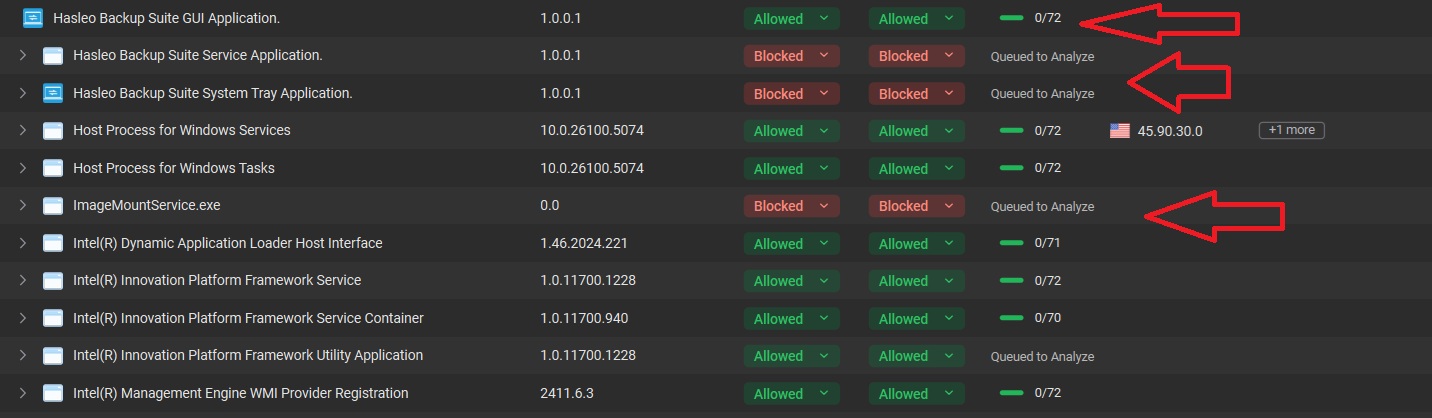
Before I updated to GW 3.7.880 there was ONE rule for Hasleo backup so it can fetch updates. After the upgrade of GW to 3.7.880 it now has multiple rules some allowed some blocked.
And the only difference was I updated GW Oo
The other big change is GW now shows way more processes. I would say the amount of shown
programms listed in my GW protect tab after the update atleast doubled!
That doesn’t help when GW silently blocked some while allowing others without user consent.
It blocked part of my 3rd party security solution without any popup.
That’s not the way to go
I have similar issues. I actually do not feel very comfortable in using a security software with such buggy behaviour. Downgrading now. And looking for an alternative…
@Huda_GlassWire Why did GW change parts of programs from allowed to blocked while I only updated GW (picture four comments above). Any ideas why that might happen? Any insight would be helpfull.
I’m experiencing this as well, that’s why I did not want to update until this is fixed buy today when restarting my PC it automatically started updating and I had no option to cancel!
Please allow cancelling the automatic update feature
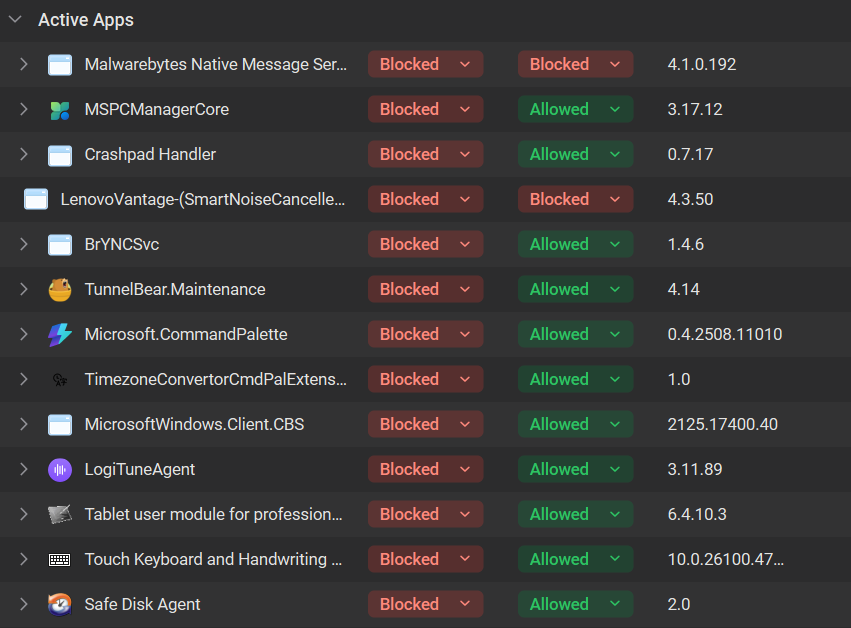
Hi everyone, I want to provide some clarification on this behavior. With the introduction of bi-directional firewall rules, we also made a change to block incoming connections for applications by default. This simplifies firewall configuration and enhances security, since in most cases, applications do not require incoming connections to function properly.
To ensure system stability, this default behavior does not apply to kernel-level applications, as blocking them could potentially impact core system functionality.
If needed, you can manually change the setting for any application from Blocked to Allowed, and this configuration will be retained going forward.
We really appreciate your feedback on this change and are always looking to improve the product based on your experience. Please feel free to share any further questions or suggestions.
Sounds sort of logical - except I am seeing tons of things being blocked for both “In Connections” AND “Out Connections”
Given the normal configuration of ANY firewall is to block inbound connections (heck - this is pretty much the definition of an attack!), I don’t see any need for GlassWire to do anything about inbound connections. And for outbound connections, I have GlassWire set to ask me if the connection should be allowed. Why would this release of GlassWire act by blocking any connection by default rather than act as it always has - by ASKING me‽‽‽
I am getting very frustrated by GlassWire.
I have always used GlassWire in “Ask To Connect” mode with the VirusTotal option under the assumption that - if I somehow manage to get malicious software on my computer - I can prevent bad things from happening by having VirusTotal give me a clean bill of health BEFORE I allow an outbound connection. BUT I have NEVER had malicious software on my computer stopped by virtue of GlassWire preventing the outbound connection and VirusTotal telling me it was malicious.
On the other hand - I have OFTEN had weird things failing because GlassWire was blocking things I didn’t know it was blocking. In the past, I have had Google Drive fail to synchronize files and Google Drive didn’t identify the problem as being blocked from connecting to the cloud. I actually have gone so far as to disconnect my Google Account and reconfigure Google Drive - before discovering it was actually GlassWire blocking Google Drive’s connection. I have FREQUENTLY had other programs fail because GlassWire all of a sudden ON IT’S OWN start blocking msedgeview2.exe. Why does msedgeview2.exe get blocked after I have allowed it? Surely there has to be some way for GlassWire to understand that it is allowed even when it is updated.
Here is a screenshot of my current "GlassWire Protect” tab showing tons blocked. I explicitly blocked exactly TWO of these - Microsoft.Windows.Photos and Microsoft Phone Link. ALL the other outbound (as well as inbound but I am not worried about blocking inbound - the Windows Firewall will do that by default) were blocked by GlassWire without asking me!!!
And why is “Microsoft Edge” showing as blocked‽ I can use it and it is not blocked!

 I shan’t be installing this version.