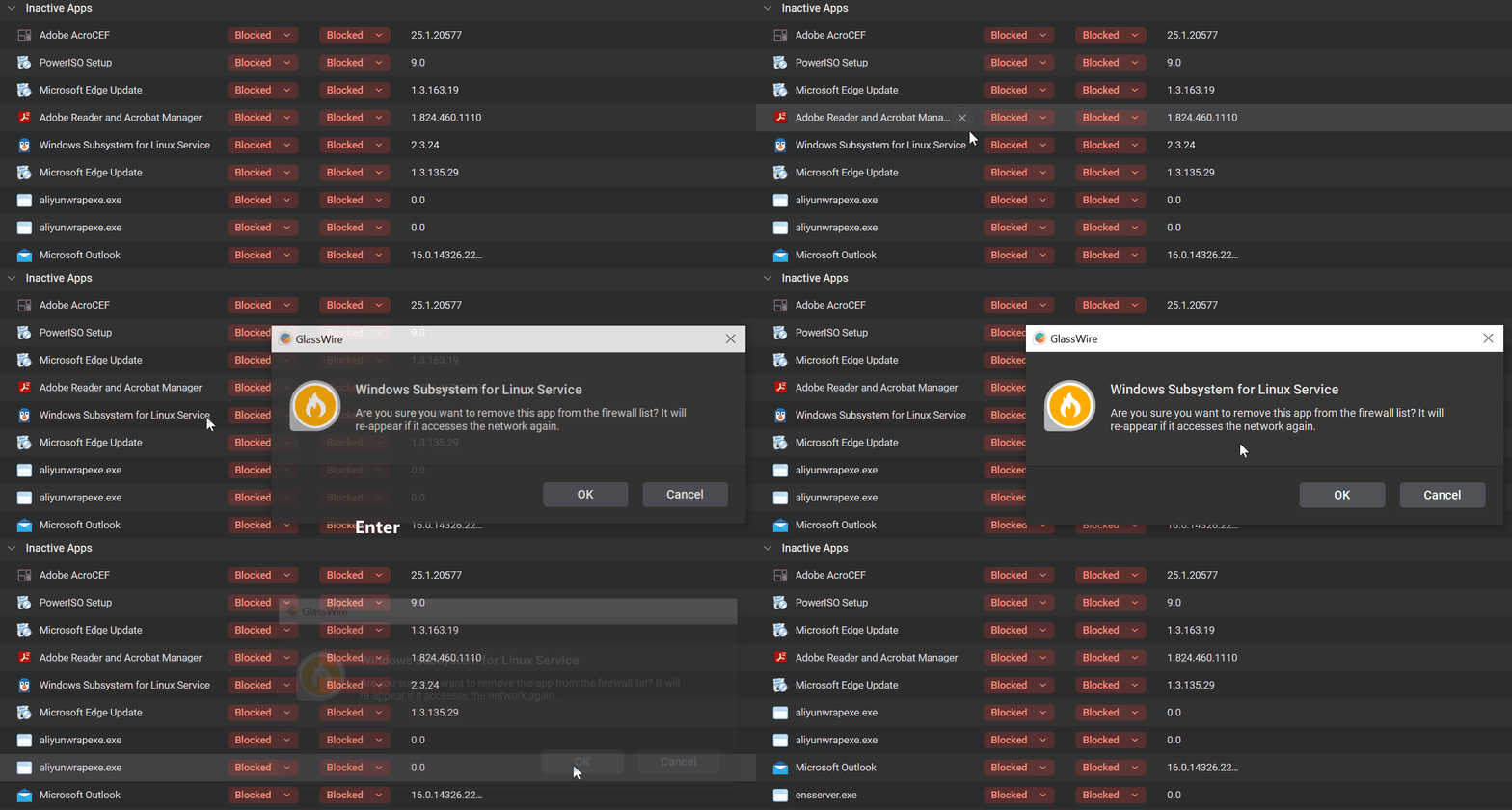
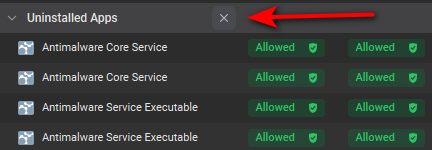
It isn’t possible to quickly select and remove firewall rules in bulk (which is a problem in itself and has been suggested before and asked many times), so instead I developed a muscle memory for hitting [X] with mouse, followed by pressing the [Enter] key on keyboard for [OK] button in the dialog.
However, after the recent UI update, the [OK] button in the popup prompt doesn’t have focus, so pressing [Enter] won’t do it, requiring moving mouse, which makes removing several rules at once a huge pain in the behind.
Please
Fix the focus on the [OK] button
Add option to the [X]button to delete without prompting (possibly with a shift key or a checkbox at the top of the list)
Allow rule selection / filter and Delete all (filtered) at once
In the OP’s other thread they ask to delete ALL rules at once. I detailed how that can be done during install/upgrade.
In a necro’d post I mentioned that you can quickly delete all rules for inactive or uninstalled apps. This was also covered in this more recent thread.
In this thread I assumed they are wanting to selectively bulk delete inactive apps. Which is not currently possible. I’m not sure what the use case for this is though. Why would you want to delete a large amount of rules for inactive apps that are still installed?
I would also like to see the ability to multi-select items and then delete them all with one operation. When you have a list of several you want to deal with, it is very tedious to have to do them one by one
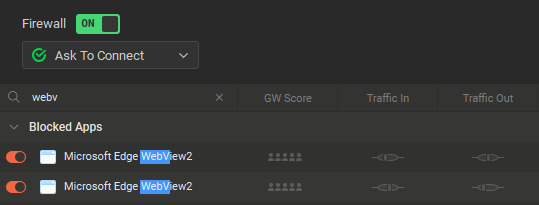
One use case is to reset rights for particular applications to allow me to get prompted again. I use this quite often with Microsoft Edge WebView2 msedgevwebview2.exe
Some apps display ads and they use the msedge webview for it. However, you never know which webview was used by which application, because you don’t have the caller reference. And so sometimes it happens that two apps like this pop up at the same time, I only want to block one and allow the other, but since there is no caller reference, it sometimes happens that I block the wrong one. This is when I need to delete all webview rules and populate them again one by one when they pop up. I do this quite regularly.
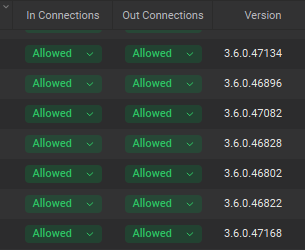
Another use case it to remove several old versions of a program that is for some reason kept in Active.
It would be so great if there was such [X] button in the list when searching, allowing you to quickly delete all displayed rules matching the search term.
And obviously, if it was also possible to delete the Active Apps, just like the Inactive/Uninstalled ones, but sadly there is no [X] button in the Active apps list.
WebView is installed/updated via Windows Update. Only the latest installed version will be used by apps. Previous versions should move into the Uninstalled section.
Delete all matching the search results would be a nice feature. Delete all Active Apps would be rather nuclear though. At that point you may as well just reinstall with the reset/clear all option.
Interestingly, that doesn’t seem to be the case. These are different versions of the WebView for some reason. I freshly installed an old GW 3.3 just an hour ago, it’s the old UI.
Reinstall with clear option seems like an extra step and not an obvious one too. You also risk resetting your settings in the process, because the installer options are rather confusing. You would also have to posses a knowledge that the installer allows this. Even if it was possible to “nuke” all rules from within the settings - if not in the UI directly, that would still be better and apparently this has been asked a few times in these forums.